
Friday, May 23, 2014

Thursday, May 15, 2014
So where do I start?
Sometimes I come across reluctance from teachers to use Google Docs with their students. Usually the main reason why is because they don't know how to use them or what to use them for. So here are some starter ideas
Drafting
With a small group of children start them off on their own Google Doc.

or the next step could be
Teacher makes comments on student Doc and students edit on Doc
Collaborative writing
Set up an Edit only doc and share with all students or post a link to the doc on your blog or wiki.
Set small achievable tasks. If students have computers at home they do this as a home learning task.

Research Topic
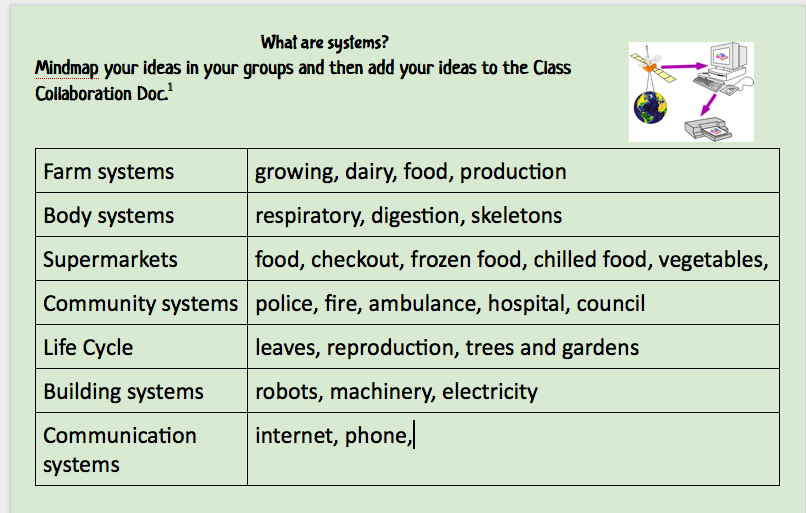
Students can mindmap/brainstorm their ideas on a question and then they can add their ideas to a collaborative Class Document of shared ideas. (Post the link on your website, or share to all students)

Drafting
With a small group of children start them off on their own Google Doc.
- Sign in
- Go to the Writing folder
- Click on Create - Doc
- Click on Untitled Doc and rename the document
- Start Writing
- This could be printed out and edited and then marked in pen
or the next step could be
Teacher makes comments on student Doc and students edit on Doc

Collaborative writing
Set up an Edit only doc and share with all students or post a link to the doc on your blog or wiki.
Set small achievable tasks. If students have computers at home they do this as a home learning task.
Research Topic
Students can mindmap/brainstorm their ideas on a question and then they can add their ideas to a collaborative Class Document of shared ideas. (Post the link on your website, or share to all students)
Publish your story
Use one page of Presentation to publish your writing
- Choose a theme
- Change the Layout to Title and Body
- Type in your title
- Type or copy/paste your story into the body box
- Add a picture
- Change theme to see if it works better
- Print out
Tuesday, March 12, 2013
Coggle and Mindmapping
Coggle is not a Google app but it works with a Google Sign in. You can create simple mindmaps and share them with others. I can see students using this as a quick easy way of getting all their thoughts down, save as a PDF or a graphic and then uploading to Evernote, Google Docs or any other application. You cannot use it on an iPad in Safari but you can on the Chrome App. The Puffin app (Free or NZ$4.19 for iPad) will also allow you to add content on the iPad.


Sunday, January 20, 2013
Add photos and videos to Google Drive with iPad

Store documents, presentations, spreadsheets, forms, photos and videos etc.
Access these documents from any device.
Share documents with others.

 Click on the +
Click on Use Camera
Take photos and videos
Click Use
or click on Upload Photo or Video and store in Google Drive

Click on Uploads
This is where all the photos and videos will be stored, which can be accessed from all devices.
Subscribe to:
Posts (Atom)